FMS Page
Note: The FMS page only appears in a device editor if an FMS is defined in your UIS configuration file and your UIS is running. Ensure that polling facilities exist in the Facility Service (FAC), they are associated with the applicable remote device, and the applicable FMS data groups are instantiated for the remote device.
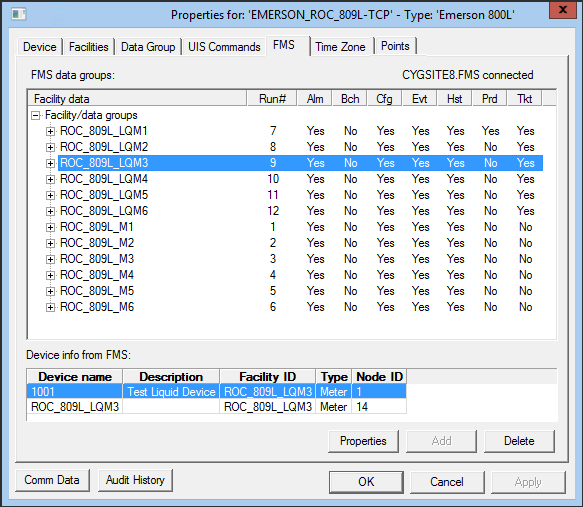
The FMS page of the remote device editor enables you to view and interact with FMS-oriented facilities when they are associated with one or more FMS data groups.
Each FMS-oriented facility is parent to a collection of FMS data groups; click facilities to expand the tree, and double-click child data groups to open property sheets. All child FMS data groups must share the same ordinal; if ordinal numbers vary, the entire collection fails and an error appears in the facility tree. If a given facility has been mapped to FMS, clicking the facility in the tree displays relevant device information in the Device Info from FMS field at the bottom of the FMS page.
|
Click the thumbnail to see an example |
For more information, see CygNet Measurement.
FMS Properties
The following table lists and describes FMS page properties.
| Property | Description |
|---|---|
|
FMS Data Groups |
This field displays a tree view of FMS-oriented facilities and their child FMS data groups. Click facilities to expand the tree, and double-click child data groups to open property sheets. All child FMS data groups must share the same ordinal; if ordinal numbers vary, the entire collection fails and an error appears in the facility tree. If a given facility has been mapped to FMS, clicking the facility in the tree displays relevant device information in the Device Info from FMS field at the bottom of the FMS page. See EFM Data Groups. |
|
Device Info from FMS |
If a given facility has been mapped to FMS, clicking the facility in the tree displays relevant device information in this field. |
|
New FMS Node |
Click to add a new FMS Node to a selected facility. Select the device Node type to add, then click OK. Applicable property sheets appear. See the following topics for more information: |
|
FMS Node Properties |
Click to view and edit a selected FMS Node's properties. After FMS Node creation, the Polling UIS and Polling facility fields are read-only in the DDS. These fields can be edited in CygNet Measurement. |
|
Delete FMS Node |
Click to delete a Node from a facility. Important: In FMS, there is a difference between deleting a Node and purging a Node. Deleting a Node removes a Node from your current system, but retains all history. Purging a Node removes it entirely from your FMS system forever. |
|
Comm Data |
Enables you to open a modeless Communications Data Viewer dialog box. |
|
Audit History |
Enables you to view the audit trail for the device. |


